7 min guide
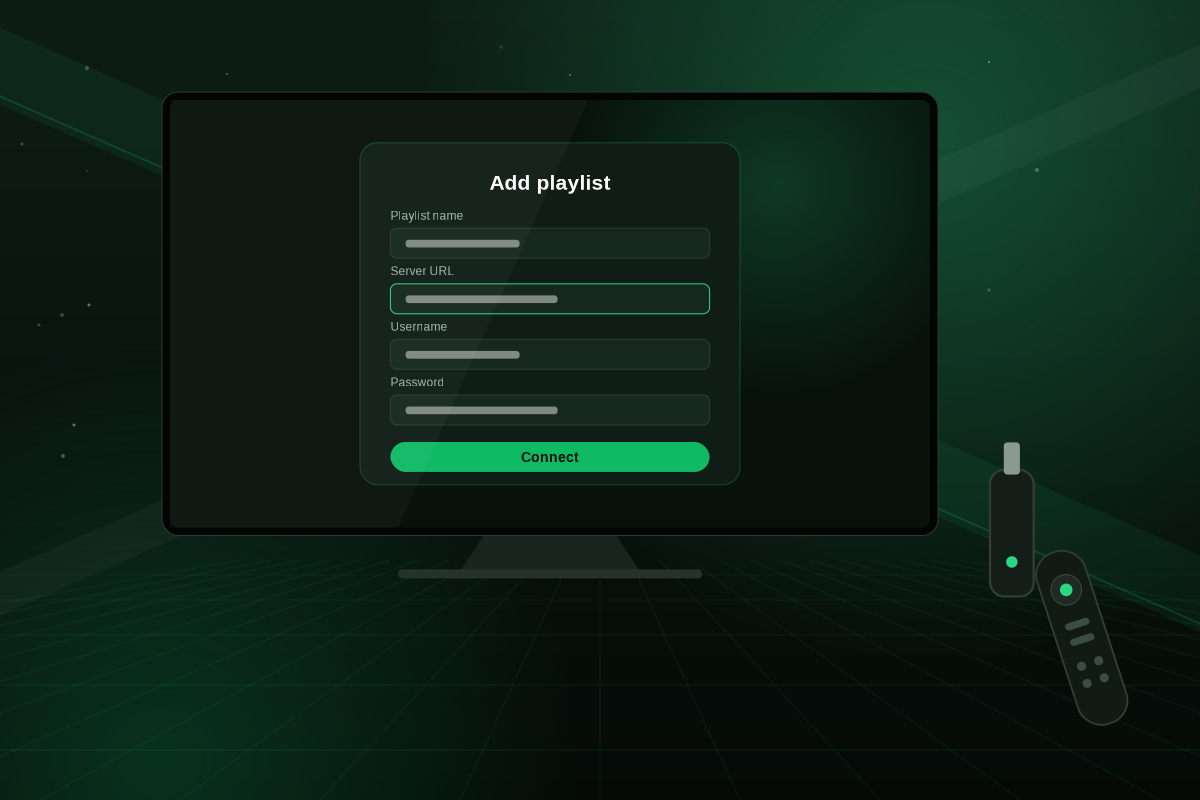
TVAXA on Fire TV Stick
Install TVAXA on any Amazon Fire TV Stick, Stick 4K, 4K Max or Fire TV Cube: get the device ready, choose a player app, enter your login and tune it for smooth live TV.
Open the guideSetup guides
Choose your device for clear installation steps. Prefer a person? Message us and we will set TVAXA up with you.
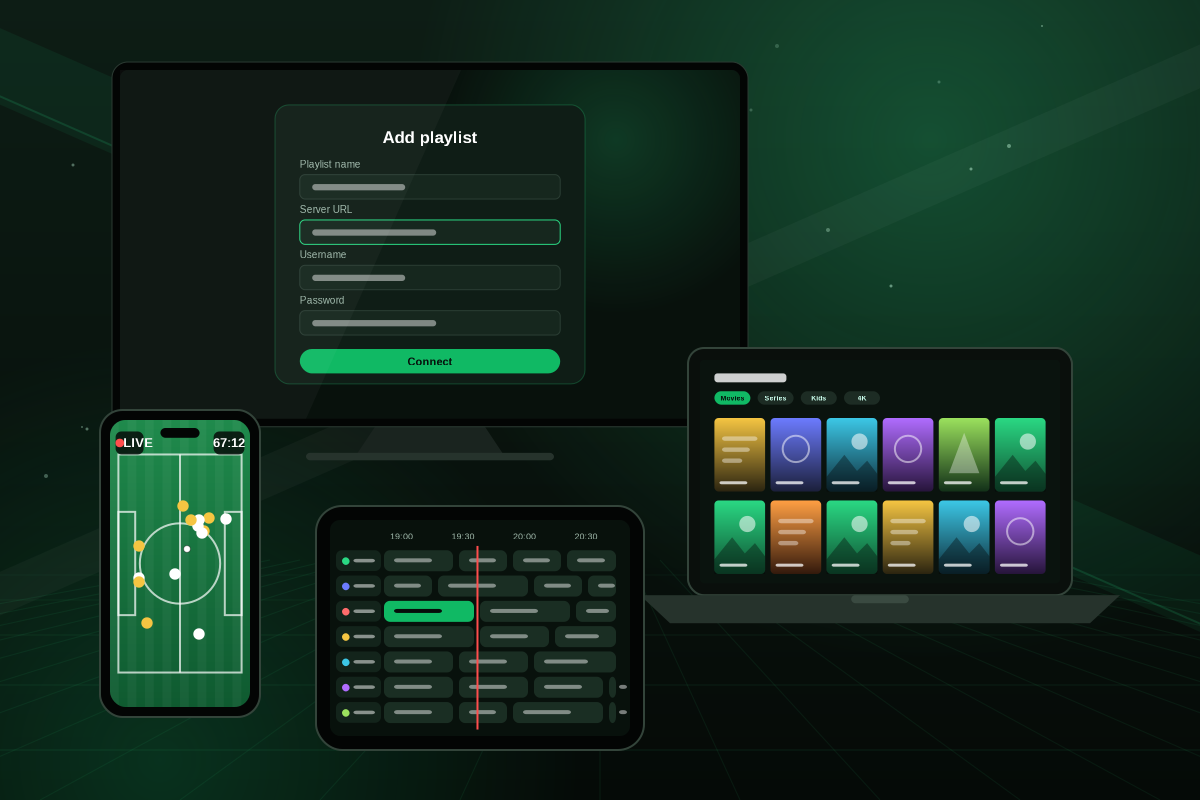
Pick your device
Install TVAXA on any Amazon Fire TV Stick, Stick 4K, 4K Max or Fire TV Cube: get the device ready, choose a player app, enter your login and tune it for smooth live TV.
Open the guide
Set up TVAXA on a Samsung (Tizen) or LG (webOS) smart TV: find a player in the TV's app store, add your login through the app or its website, and know when a stick is the better choice.
Open the guide
Set up TVAXA on Android TV boxes, Google TV devices, NVIDIA Shield, Android phones and tablets: install a player from Google Play, add your login and tune the settings.
Open the guide
Install TVAXA on Apple TV HD, Apple TV 4K, iPhone and iPad: choose an IPTV player from the App Store, add your login and use AirPlay or iCloud sync between devices.
Open the guide
Watch TVAXA on a Windows laptop, desktop PC, MacBook or iMac using a desktop IPTV player or a general media player, then send it to a bigger screen with HDMI.
Open the guide
Connect a MAG box (MAG 322, 324, 424, 524 and others) or an Enigma2 receiver to TVAXA: send us the MAC address, add the portal URL and restart the box.
Open the guideBefore any setup
The server URL, username and password (or M3U link, or portal URL for MAG) that we send on WhatsApp.
About 10 Mbps per screen for HD and 25 Mbps for 4K. A cable is best for TVs and boxes.
We recommend one for your device. Our player apps guide compares the popular options.
Questions
A compatible device, an internet connection and the login details we send on WhatsApp after you order or ask for a trial. Each guide lists anything extra you need.
For most homes a Fire TV Stick 4K, a Google TV or Android TV box, or an Apple TV 4K is the smoothest choice. Recent Samsung and LG TVs also work well with the right app.
Yes. Message us on WhatsApp with your device and we will walk you through it, screen by screen if needed.
Tell us your device and we will walk you through it on WhatsApp.