Key points
- Works on most Samsung and LG TVs from recent years
- No extra hardware if your TV has a suitable app
- A streaming stick is the easy fix for older TVs
If your television is a recent Samsung or LG, you may not need anything else to watch TVAXA. Both brands have app stores with IPTV players that can load your account directly. The process is a little different from a Fire TV or Android box, because many TV players are configured through a website using a code displayed on the TV. This guide covers both approaches.
Check your TV
- Samsung TVs run Tizen. Press Home and open Apps to reach the store.
- LG TVs run webOS. Open the LG Content Store, labelled Apps on newer models.
- Update the software first: Settings › Support › Software Update on Samsung, or Settings › General › About This TV on LG. Many players require a recent version.
Pick a player app
Search the store for "IPTV" and you will see several players. Some are free, some charge a small one-off or yearly fee directly to the developer, which is separate from your TVAXA plan. Read recent reviews for your TV model. When you order, we tell you which player works best on Samsung and LG right now.
Add TVAXA to the TV
- Install the player from your TV's app store and open it.
- Note the details it shows on screen. Many TV players display a device ID, MAC address or short code.
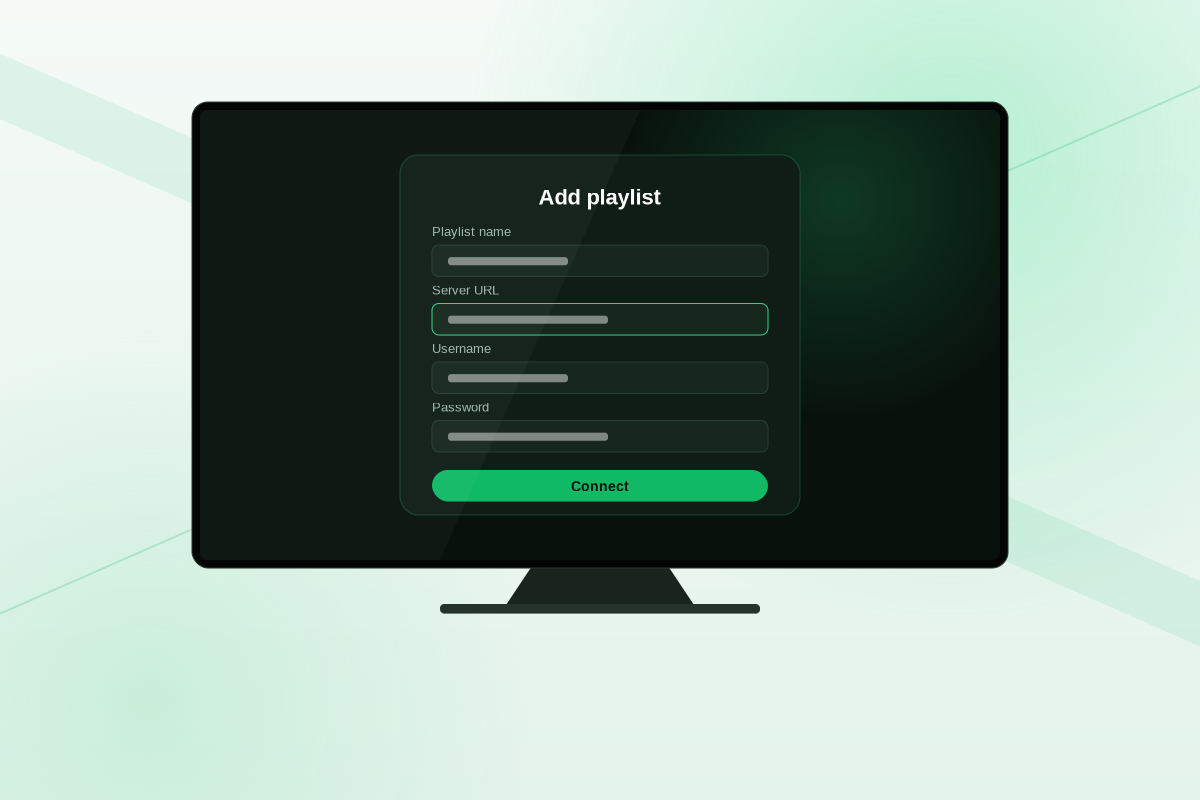
- If the player has a built-in login form, choose Xtream Codes and enter the server URL, username and password from WhatsApp.
- If the player asks you to add playlists on its website, open that site on your phone or computer, enter the device ID or code, and paste in your TVAXA details there.
- Return to the TV and restart the app, or choose Reload. The channel list, films, series and guide will then download.
Send us the device ID or MAC address your TV app shows if you would like us to help with the website step.
Connect the TV properly
Smart TVs often have weaker Wi-Fi chips than phones or laptops, and some only have a 100 Mbps Ethernet port. That is still more than enough for 4K, so a cable from the router is the best way to get a steady picture. If a cable is not practical, try a powerline adapter or a mesh node near the TV.
When a stick makes more sense
TVs more than six or seven years old may not get updated apps, and their processors can struggle with very large channel lists. In that case an inexpensive streaming stick such as a Fire TV Stick 4K or a Google TV device will give a faster, smoother experience. See our Fire TV guide or Android and Google TV guide.
Smart TV tips
- Turn off motion smoothing for a more natural picture with films, or keep it on for sport if you prefer.
- Switch on Game mode only if you notice remote lag; it can reduce picture processing.
- If the guide is out of step, check the TV's own clock and time zone under General settings.
Need help? Message us on WhatsApp with your TV model and a photo of the screen.