Key points
- Works on every current Fire TV Stick, Cube and Fire TV smart TV
- Allow about ten minutes the first time
- Keep your TVAXA login from WhatsApp to hand
The Fire TV Stick is the most common way TVAXA customers watch, from New York to Dubai. It costs little, plugs straight into an HDMI port and, in the 4K and 4K Max versions, has plenty of power for big channel lists and high-bitrate sport. This guide works for every Fire TV Stick generation, the Fire TV Cube and televisions with Fire TV built in.
Get the stick ready
- Install updates. Open Settings › My Fire TV › About and choose Check for Updates. Let anything pending install and restart.
- Free up space. Uninstall apps you no longer use. Player apps need room for the channel list and guide.
- Open your login. After you order or request a trial, we send your TVAXA details on WhatsApp: normally a server URL, username and password, sometimes an M3U link too.
Choose your player
TVAXA plays inside a third-party IPTV player app. Several are listed in the Amazon Appstore; search the home screen for "IPTV player" and check recent reviews. Others are installed from the developer's official site using the free Downloader app. When we send your login, we name the player we currently recommend for Fire TV and the exact steps for it.
Only install apps from the Appstore or a developer's official website. Never sideload a "ready-made" app file from a stranger.
Install the player
- If the player is in the Appstore, search for it, open its page and press Get or Download. Skip to the next section when it finishes.
- If it is not in the Appstore, go to Settings › My Fire TV. No Developer Options? Open About and click your device name seven times to unlock them.
- Install Downloader from the Appstore, then in Developer Options › Install unknown apps switch Downloader on.
- Open Downloader, type the address of the player's official download page and follow the prompts to install it. Delete the installer file afterwards to save space.
Add your TVAXA login
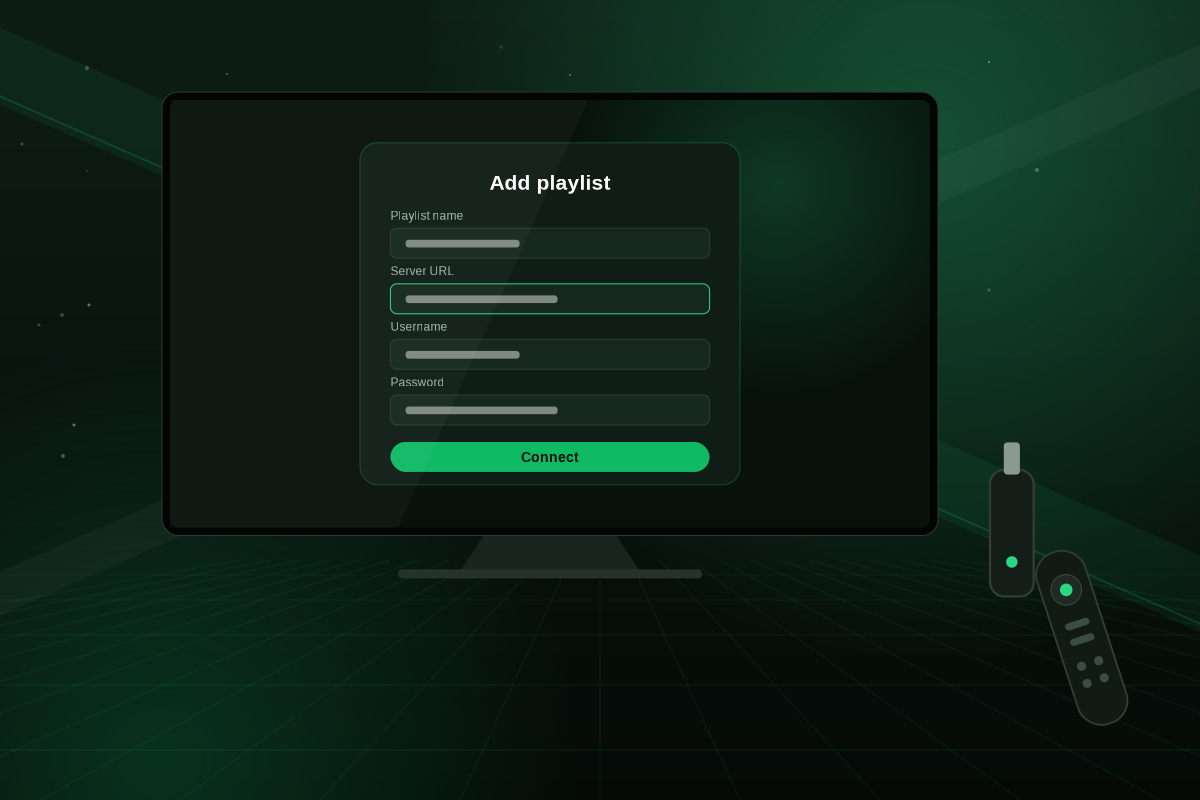
- Launch the player and pick Add user, Add playlist or a similar option.
- Choose Xtream Codes (also called "Xtream API" or "login with username"). It is quicker than M3U and pulls in the programme guide automatically.
- Enter the server URL, username and password exactly as we sent them. The URL usually begins with
http://and may finish with a port number such as:8080. - Save and give the app a minute or two to download live channels, films, series and the guide. Do not leave the screen while it loads the first time.
Typing long passwords with the remote is slow. The Fire TV app on your phone has an on-screen keyboard that makes it much easier.
Tune it for live TV
- Match frame rate. On 4K models, turn on Settings › Display & Sounds › Display › Match Original Frame Rate for smoother sport.
- Favourites first. Put your most-watched channels in a favourites group so they open first.
- Hide unused categories. A shorter list loads faster and is easier to browse.
- Guide timing. If listings are out by an hour or more, check the Fire TV's time zone and the player's EPG offset.
Keep it fast
Fire TV Sticks have modest storage and memory. Clear the player's cache now and then from Settings › Applications › Manage Installed Applications, and restart the stick weekly by holding Select and Play for five seconds. Keep the stick in the open rather than squeezed behind the TV, where it can overheat.
Quick fixes
| Problem | Usual cause | What to do |
|---|---|---|
| "Invalid login" message | A typo or a stray space | Retype the details or paste them with the Fire TV phone app keyboard |
| Live TV works, films are empty | First load was cut short | Refresh the playlist in the player settings and wait for it to finish |
| Picture freezes during sport | Weak Wi-Fi or an older stick | Use an Ethernet adapter, move the router closer or pick the HD version |
| Stick reboots on its own | Low storage or heat | Remove unused apps, clear cache, give the stick air |
Still stuck? Read our freezing guide or send a photo of the screen on WhatsApp.